How to Make a Basic Flowchart in Visio (Step by Step)
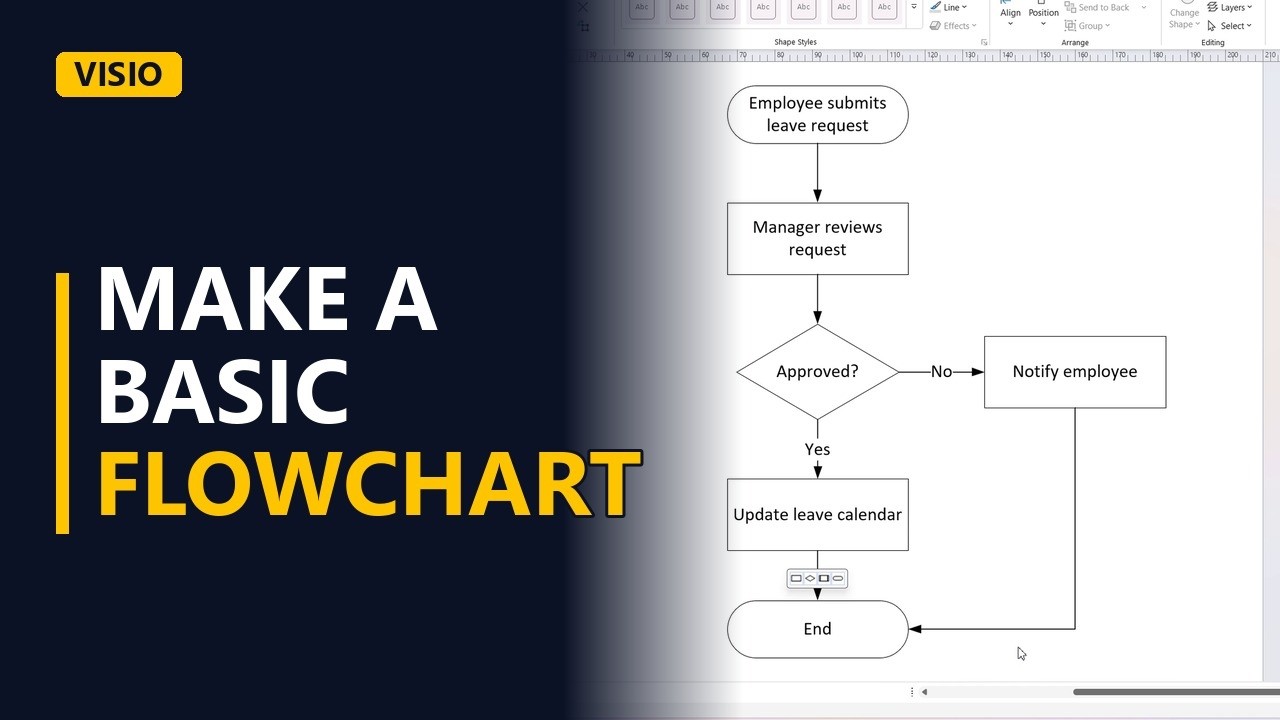
Learn how to make a clean, basic flowchart in Microsoft Visio, step by step. We map a simple leave request process with a start, process steps, a yes/no decision and an end. You will also see the step most people forget: labelling every line that leaves a decision.
Step by step
Intro
- Basic flowchart in Visio. In this video, I'll show you how to make a clean, basic flowchart in Visio, step by step. We'll map a simple leave request process, the kind of thing business analysts draw every week.
- The Shapes pane. I've opened a blank drawing with the Basic Flowchart Shapes stencil. Everything we need is right here in the Shapes pane on the left.
Start and first step
- Add a start. Every flowchart needs one clear starting point. Drag a Start End shape onto the page, and just start typing to name it.
- Add a process. Next, the first activity. Drag a Process shape below it. A process shape is one action, so name it with a verb.
- Connect shapes. Now connect the two. Visio's auto connect draws the arrow for you, and it stays glued to both shapes when you move them.
Add a decision
- Add a decision. The manager has to make a choice, so we use a Decision shape, the diamond. Write the decision as a yes or no question. Connect the review to the decision.
Yes and No paths
- The Yes path. If the answer is yes, the leave goes into the team calendar. Drop another Process shape straight below.
- Label the line. Connect it, and here's the step most people forget. Label the line. Type yes, so nobody has to guess which way the decision went.
- The No path. If the answer is no, the employee gets told why. Put that path off to the side, so the happy path stays straight down the page.
- Label the line. Connect it and label this one no.
End every path
- Add an end. Finally, every flowchart needs a clear ending. Drop one more Start End shape at the bottom.
- Close every path. Connect both paths to the end, so every route through the process finishes somewhere. And the no path too.
- Done. Click away to see the finished diagram.
3 rules
- 3 rules to remember. And that's it. Three rules to remember. One start, one end, and a label on every line that leaves a decision. If this helped, subscribe for more Visio and business analysis tips.