How to Align Shapes in draw.io (Neat Diagrams Fast)
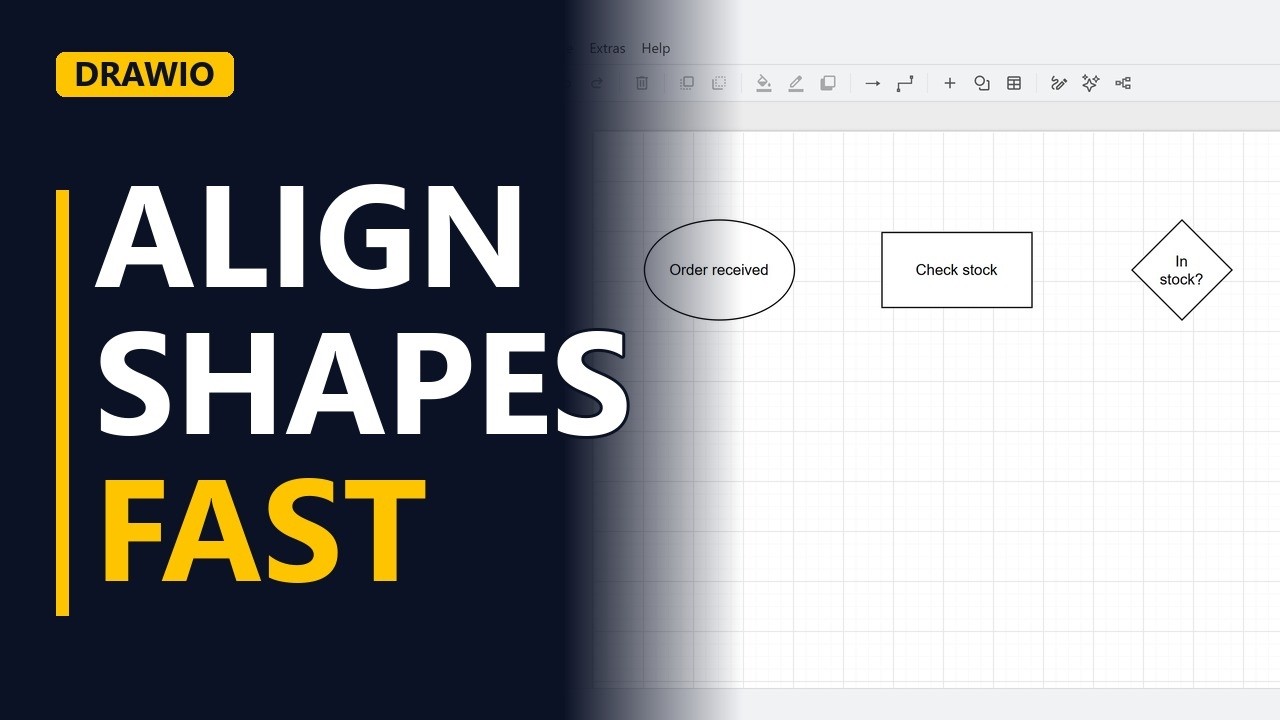
Wobbly shapes make a diagram look careless, even when the content is right. Learn how to line up a row and a column of shapes in seconds in the free draw.io web app with Arrange, Align, using the steps of an online shop order.
Step by step
Neat in seconds
- Align shapes. A diagram with wobbly shapes looks careless, even when the content is right. Stakeholders notice. draw.io can line everything up in two clicks. Here's the tidy result we'll get.
- Blank diagram. Start a blank diagram in draw.io.
A messy row
- A messy row. Let's make a messy row on purpose. Drag in an ellipse. Order received. Add a rectangle a bit lower. Check stock. And a diamond a bit higher. In stock? draw.io snaps each shape to the grid as you drop it, but that doesn't line them up. Different sizes and small slips make the row wobble.
Align a row
- Align middle. Select all three. Click the first, hold control, and click the others. Then open arrange, align, and choose middle. Their middles now sit on one line.
Align a column
- A messy column. Columns wobble too. Drop three steps down the right side. Pick items. Pack order, a little to the right. And ship order, a little to the left.
- Align center. Select the three steps, then arrange, align, center. Now they stack in a straight column, lined up on the first one you clicked.
- The tidy page. Click away to see it. A straight row and a straight column, in a few seconds.
Recap
- The rules. So, select the shapes, then arrange, align. Use middle for a row and center for a column. Do it before you connect anything, and your lines come out straight too. Subscribe for more draw.io tips for business analysts.