Show Jira Issues in Confluence: A Live List of Stories (Jira Work Items Macro)
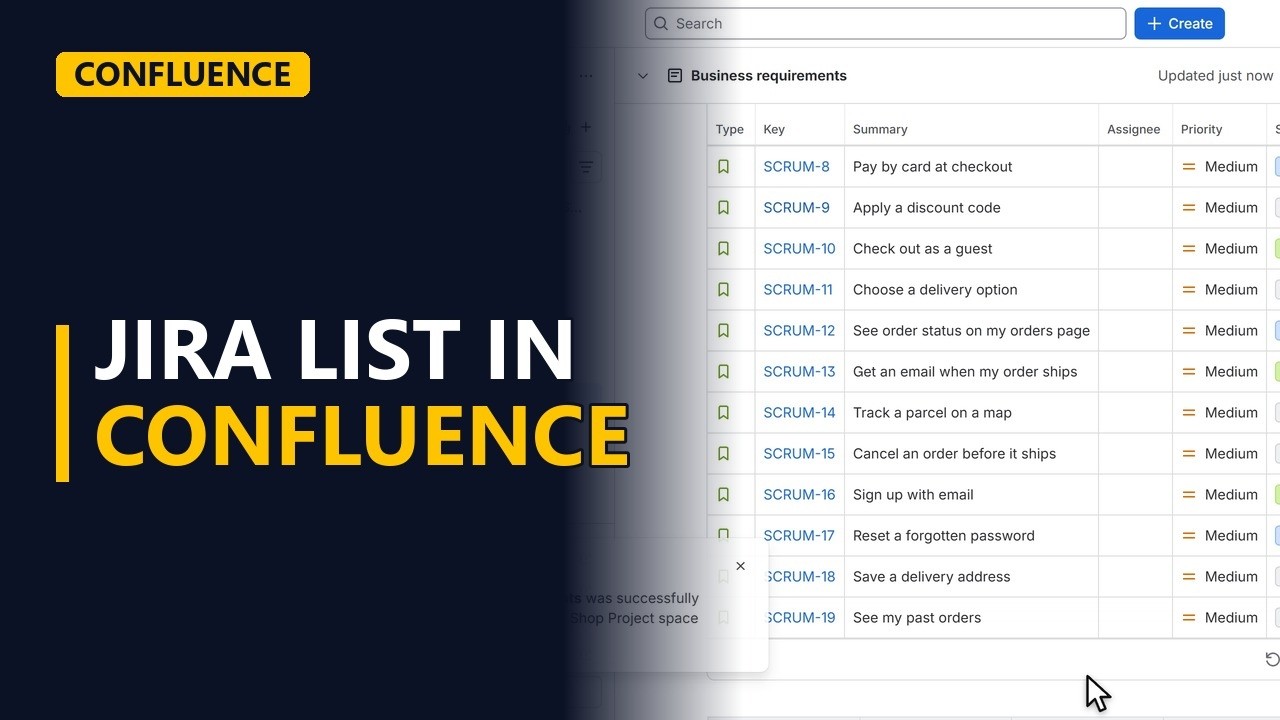
Put a live list of Jira stories on a Confluence requirements page with the Jira work items macro and a short JQL query. The status on the page updates by itself when the team moves the work in Jira.
Step by step
Why a live list
- Jira list in Confluence. Your requirements are in Confluence. The stories are in Jira. Put the stories right on the requirements page, as a live list that keeps itself up to date.
Add the list
- Edit. Click edit.
- A new line. Click in the first line, press end, and press enter for a new line.
- Slash Jira. Type a slash, and Jira work items. Press enter. A search window opens.
- A JQL query. Switch to JQL, so you can say exactly which work items you want. Type the query. Project equals scrum, and type equals story, ordered by key. Click search.
- Check the results. Here are our twelve stories, each with its key, summary, priority and status. Click insert results.
Share it
- Update. Click update.
- Always up to date. The stories now sit on the requirements page. When the team moves a story in Jira, its status here changes too. Nobody copies anything by hand.
Recap
- Slash Jira, query, insert. So, type a slash and Jira work items. Switch to JQL, type your query, search, and insert the results. The list stays live. Subscribe for more Confluence tips for business analysts.


