How to Make a Kanban Board in Airtable (User Story Backlog)
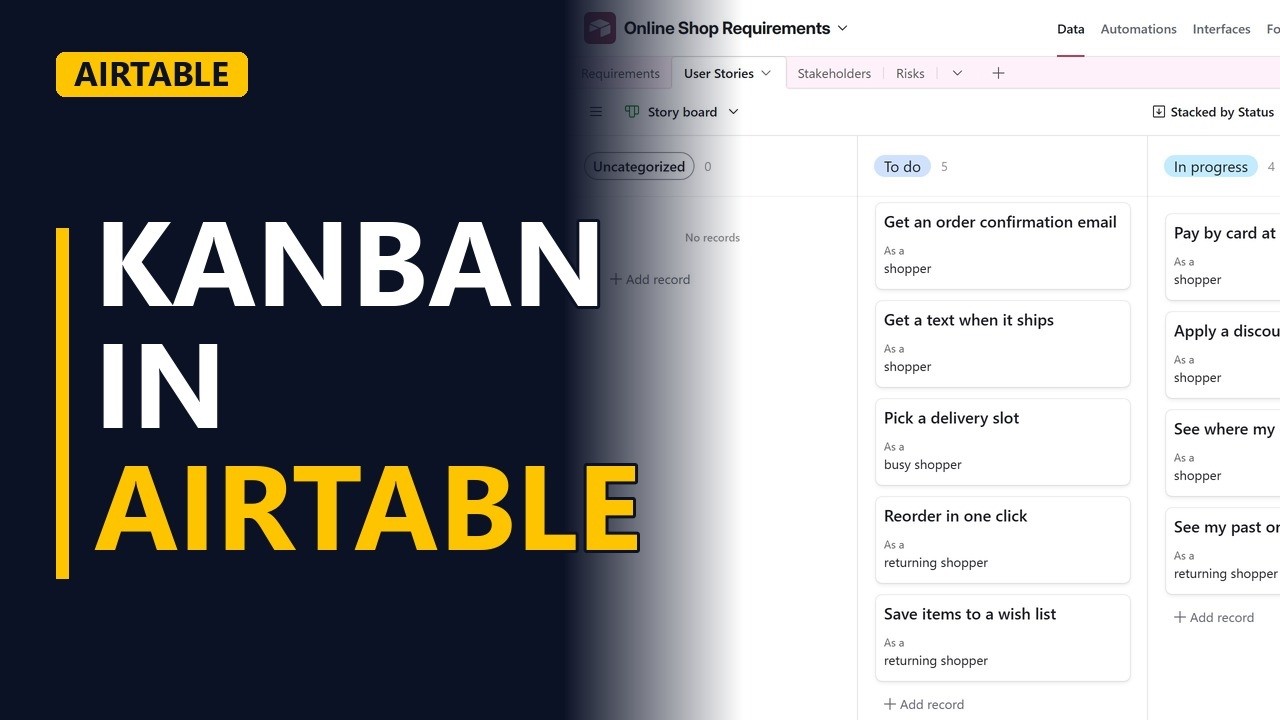
Turn a user story backlog into a kanban board in Airtable: a kanban view stacked by status, cards you drag between columns, all on the free plan. A step by step tutorial for business analysts.
Step by step
The board
- Kanban in Airtable. A backlog in a grid is hard to scan. A kanban board shows every user story as a card, in a column for its status. Let me build one in Airtable, on the free plan.
- A status field. These are our user stories. Status is a single select: to do, in progress, or done. A kanban board needs a field like this.
Make the view
- Kanban view. In the view list, click create new, pick kanban, name it story board, and stack the cards by status. Hide the view list to give the board more room.
- Columns. Each status is now a column, with a count at the top. Six stories are still to do.
- Cards. Every card is one user story, with its title on top.
Move a card
- Drag to update. The team just started on discount codes. Drag the card to in progress. It saved at once. The story's status is now in progress, in every view of this table.
- Customize cards. Customize cards picks the fields each card shows, like points or the epic.
- Just a view. The board is only a view. The grid view still lists every story as a row.
Recap
- Grid to board. So, a kanban view needs a single select field to stack by. Drag a card, and the record changes everywhere. Make one board per team or per epic, all on the free plan. Subscribe for more Airtable tips for business analysts.


