Airtable Linked Records: Connect User Stories to Requirements
Link user stories to requirements in Airtable with a linked record field, and see the link appear on both sides: simple traceability for business analysts. Shown on a real Airtable base on the free plan.
Step by step
The link
- Linked records. Which user stories deliver which requirement? In Airtable, a linked record field answers that, in both directions. Let me link a story to a requirement.
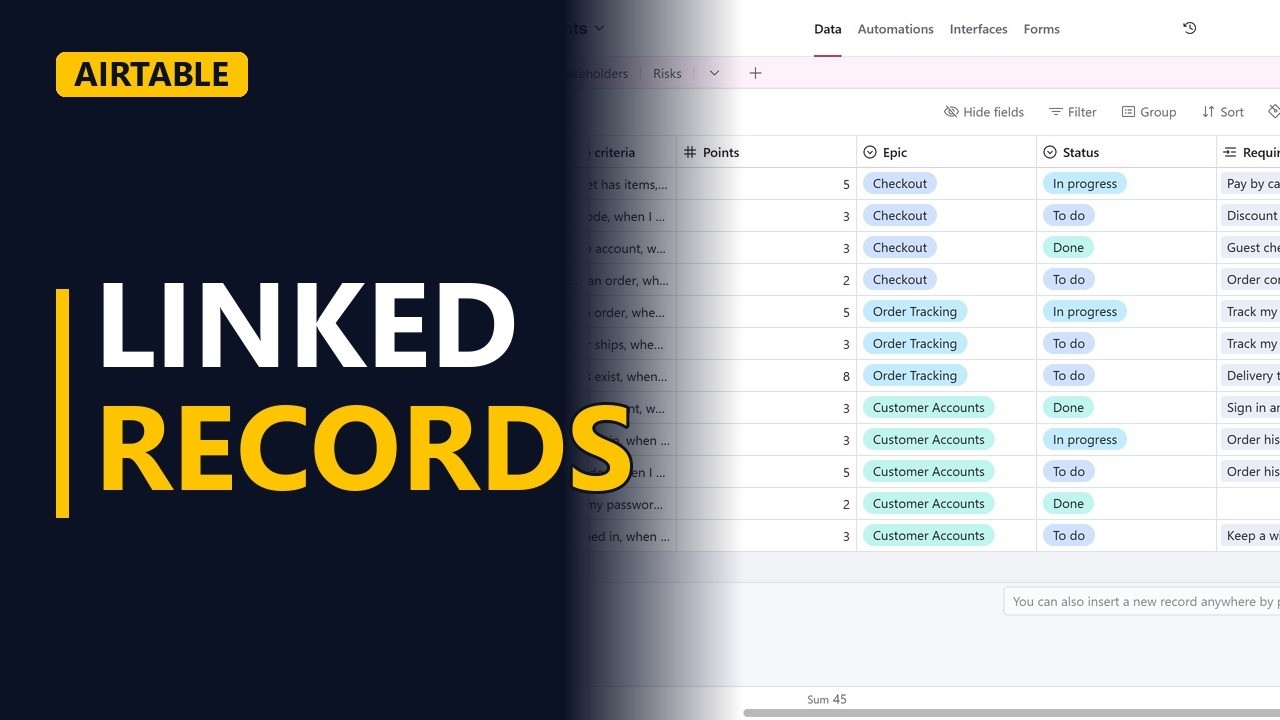
- A link field. In the requirements table, the user stories field links to records in another table. Each grey chip is one story. Track my order is delivered by two stories.
- Add a link. But keep a wish list has no story yet. Let's fix that.
Link a story
- Add a link. Click the cell, then the plus. Search for wish, and pick the story save items to a wish list.
- Expand it. Expand the requirement to see the linked story as a card. The story's own fields show right inside the requirement: as a, I want, and so that. Press escape to close it.
Both sides
- Both sides. Now open the user stories table. Airtable added the link on this side too. The story now points back to its requirement, without any typing.
Recap
- Link once, see both ways. So, a linked record field connects two tables. Link once, and both sides update. Use it for requirements and stories, risks and owners, or a whole traceability matrix. Subscribe for more Airtable tips for business analysts.